Vocareum Troubleshooting
These are steps for troubleshooting Vocareum issues in notebooks and exams.
For Honorlock or Proctortrack issues, see Proctoring Troubleshooting - OMSA or Proctoring Troubleshooting - VMM.
If something goes wrong
- Save your work. Download your notebook or copy your code out (how).
- Troubleshoot. Find your issue below, or work through Try these in order.
- If you can't fix it, post and keep working. Make a private Piazza post using the Platform Issue Template, then keep working on whatever you can. Don't stop and wait for a reply. The TAs may not see it right away, and on an exam your timer keeps running.
What are you seeing?
Opening an assignment
While you're working
After you submit
Before you do anything: save your work
Do this first
If the server is having issues, refreshing can lose unsaved work. Save a copy before trying anything below. Downloading takes about 5 seconds.
In the left sidebar: Files > work > right-click main.ipynb > Download.
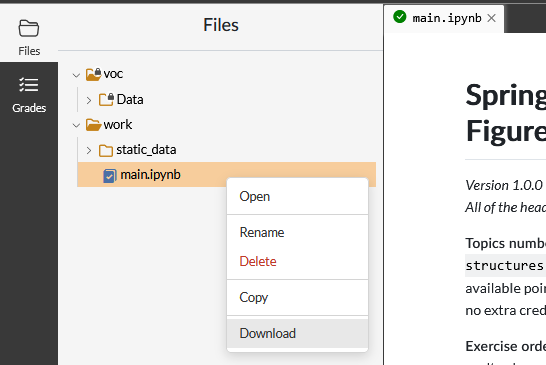
This gives you a .ipynb file, so you'll need something that can open it. VS Code works without anything extra, but try it before exam day.
Copy your exercise code into any text editor (Notepad, TextEdit, an IDE, whatever you have).
Slower than downloading, but you don't need anything special to open it later.
Try these in order
If your issue is listed above, its fix is the fastest way to solve it. If you're not sure what's wrong, or it doesn't match anything above, work through these steps. The order is intentional, so ensure you're following the instructions listed in the dotted line as you roll down the list.
1. Refresh the kernel. Bottom bar: Kernel > Refresh. This reconnects your current session.
Re-run the setup cells after restarting
2. Restart the kernel. Click Restart on the bottom bar. This starts a fresh session, so your code stays but anything you ran is cleared. Run the setup cells at the top of the notebook again (they load the packages and data).
Save your work before continuing
3. Refresh the browser page. Use your browser's refresh button, and don't close the tab (see step 4 for why that matters on exams).
Reopening takes longer (about 5 min on GT exams)
4. Close the tab and reopen the assignment from Canvas/edX. For notebooks and practice problems, that's it. For exams (including the GT timed practice exam):
- GT (Honorlock): reopening asks for the Vocareum passcode again, which means restarting Honorlock.
- VMM (Proctortrack): there's no passcode. Leave Proctortrack running, go back to the exam page in edX (refresh it if it's still open), and click the button at the bottom to open the exam.
Once you're back in, run the setup cells at the top again.
If nothing worked, post and keep working
5. Make a private Piazza post using the Platform Issue Template. Include the exact error text, a screenshot, and what you've already tried. Then keep working on what you can while you wait for a reply.
Assume it's not a platform issue
Platform issues usually show up as a Vocareum warning box, "Error saving!", or a red kernel. Outside of that, most reported "issues" are code failures. Add a scratch cell, print intermediate values (an f-string like print(f"{len(df)=}") is handy), check your data types even if you're sure of them, and restart the kernel to rule out stale variables. For test case variables, see the Exam Test Case Variables Guide.
Opening an assignment
Stuck on the Vocareum logo
Sometimes an assignment gets stuck on the Vocareum logo. Wait 20-30 seconds, then refresh the page. It may take a couple of tries, but on exams your timer doesn't start until you're in the notebook, so you won't lose exam time. If it still won't load, go to step 4.
While you're working
Kernel status is red, or disconnected
The kernel dot in the bottom right should be green, whether code is running or not. Red usually means the server connection dropped or the session sat idle too long. Large printed output can also cause it (see Page is slow or laggy).
-
On the bottom bar, click
Kernel>Refresh. It should go yellow, then you'll get a notification that it's working again.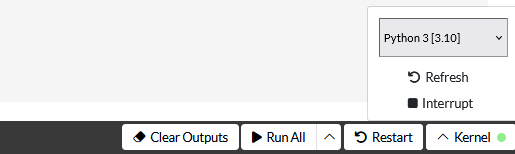
-
If it's still red, click
Restarton the bottom bar, then re-run the setup cells at the top of the notebook. -
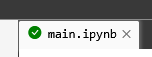
If that doesn't fix it, check that your notebook tab shows a green checkmark (autosave worked), save your work anyway, then refresh the browser page.
If none of that works, go to step 4.
"Error saving!" on the notebook tab
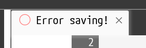
The notebook tab is the best indicator of whether your work is being saved. A green checkmark means auto-save is working. "Error saving!" means it isn't, usually because the session lost its connection to the server or large outputs caused issues.
Save your work right away, then refresh the browser page. When you're back in, the tab should show the green checkmark again. If it doesn't, go to step 4.
Good
Bad
"Save failed" (heavy traffic)
Save failed. VOCAREUM-ERROR: Sorry, your access to Vocareum is temporarily unavailable due to heavy traffic, you may re-connect later. If issues persist, please contact Vocareum technical support
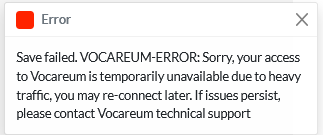
Vocareum is overloaded, but your work may still be saving. Close the popup and check the notebook tab:
- Green checkmark: saving is still working and you can keep going, but download a copy anyway.
- "Error saving!": your work isn't being saved. Follow the steps above.
If the popup keeps coming back, make a private Piazza post with the time you saw it.
Warning box: server terminated or unhealthy
Vocareum sometimes shows one of these in the corner of the screen:
Your lab's server will be terminated in two minutes. Please save your work and refresh the page to start a new session
Your lab's server appears to be unhealthy. Please save your work and refresh the page to start a new session
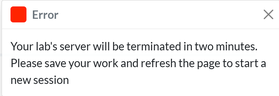
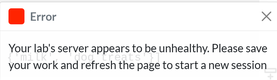
Do what it says: save your work, then refresh the browser page to get a fresh server. If it keeps coming back, make a private Piazza post with the time you saw it.
Page is slow or laggy
VMM students
Proctortrack has a known bug where the page will be slow and your typing may lag. If that's the case, switch to a different browser (Chrome, Edge, Safari, etc.). See the Proctortrack page for the steps.
Otherwise, the most likely cause is too much printed output. Printing large DataFrames across several exercises can push the browser tab to 500MB+ of memory, which slows the page down and can break autosave or disconnect the kernel.
-
Click
Clear Outputson the bottom bar. It may take a few seconds.
-
If things speed up, find the cells that print a lot and comment out just the print statements. The autograder runs your whole notebook, and huge output can cause it problems too.
If the status bar says Status: Running x of y cells, a cell is still running (it'll have a spinning circle next to it). Give it a bit, and if it never finishes, stop it with Kernel > Interrupt and check your code for an infinite loop. If the status says Error, work through Try these in order.
Submit button or other Vocareum buttons disappeared
Sometimes the top bar vanishes while the notebook keeps working. Refresh the page. If the buttons are still missing, close the tab and reopen the assignment from Canvas/edX. On an exam, read step 4 here first, since GT students will need to restart Honorlock. If they're still missing after that, make a private Piazza post.
No such file or directory
FileNotFoundError: [Errno 2] No such file or directory: 'resource/...' is a known platform bug that the TAs have to fix. Make a private Piazza post right away with the full error text and the time you saw it, then keep working on other exercises if you can. On an exam, if the TAs confirm the issue and it isn't fixed within 10 minutes, they'll add that time back.
Other file errors can look similar but aren't the same bug. Include the exact error text so the TAs can tell which one it is.
Accidentally deleted an instructor cell: resetting to starter code
There's no undo for a deleted cell. The only fix is to reset the assignment back to the starter notebook and paste your code back in.
Resetting deletes all of your work
Make sure you've saved a copy before you click reset. On an exam, the TAs can't give you extra time or reopen the exam if your work is lost.
- Save your work. Copying your code into a text editor makes pasting it back easiest.
-
Click the reset button at the top right (the circular arrow next to
Submit).
-
Wait for the reset to finish. You'll end up back in a fresh copy of the notebook.
- Open your saved copy, paste your code back into each exercise, then run the setup cells at the top.
After you submit
Note
Most "grading issues" turn out to be the autograder working as intended. These are the most common ones.
Test cell says "Passed!" but I got no points
Click Grades on the left bar to see the breakdown for each exercise, then look at your notebook, which also updates to show pass/fail. Green is a pass. Red is a fail, with either the Python error or the grading script's output.
The usual cause is that the code changed after you tested it, for example text you deleted by accident while moving to another exercise. To check, click Restart on the bottom bar, run the setup cells at the top, then run just the cells for that exercise. That's close to what the autograder does. If you still think it's wrong, use the Potential Bug Template.
Points show in Grades, but my score didn't go up
Your score is your single highest submission. If a new submission doesn't beat your best one, the submission count and the Grades pane may not change.
A couple of common ways this happens:
- You solved a new 1-point exercise, but a 2-point exercise you'd already solved now fails because some of its code got deleted. The new total is lower, so nothing updates.
- You think a new exercise is solved, but it fails the autograder.
If neither of those fits, re-read the assignment instructions (or the exam release notes) and then make a private Piazza post so the TAs can take a look.
I can't see my grade in Canvas/edX
If your score shows in Vocareum, it's been recorded and should show up in Canvas/edX shortly. If it's not there after 30 minutes, make a private Piazza post with the assignment name, the time of your last submission, and the score you expected.
Using a local IDE
You're welcome to work locally, but it isn't officially supported and we strongly recommend using Vocareum. If you do:
- Package versions may differ from Vocareum's (see Modules Installed in Vocareum)
- Your code still has to pass the Vocareum autograder, and "it ran locally" isn't an exception
- The grading tools are only supported inside Vocareum
If none of the above worked, make a private Piazza post using the Platform Issue Template and keep working while you wait.